

Time tracking in Photoshop, all the way to the price to bill.
A timer panel in Photoshop: start it on a job, retouch as usual, and the time you really spent working becomes the amount to bill your client.
Photoshop 2025 (26.0) or later · Mac and PC · from €11.90 a month
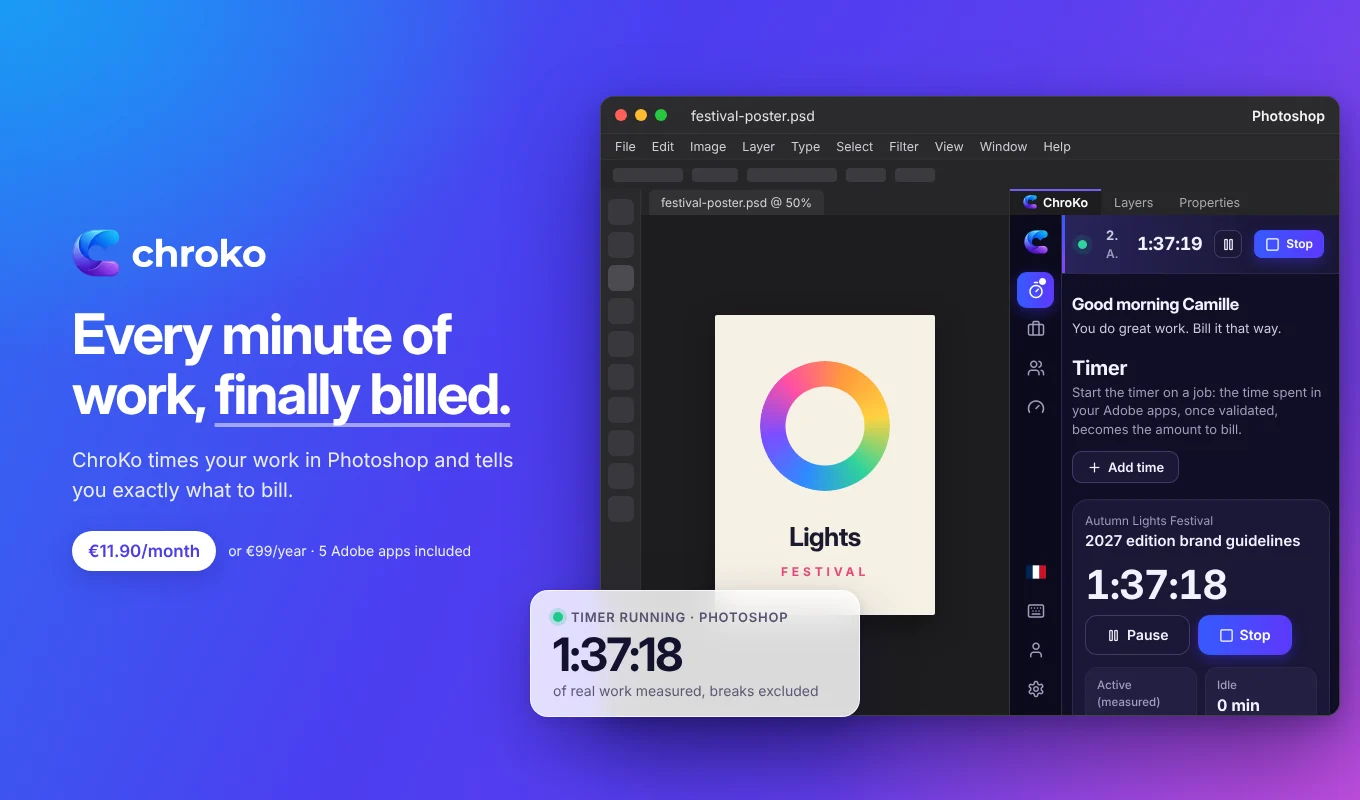
What the timer counts in Photoshop.
The panel listens to the actions Photoshop reports itself. It never reads your images or what you do in other software.
Your actions on the document
Layers, selections, transforms, fills, crops, copy and paste, image or canvas size: every action extends your active time.
Your history
Every new history state counts as an action: a brush retouch or an adjustment, even without changing layers.
Opening and saving
Opening, saving, placing an embedded object, flattening or merging: all signs that you are at work.
Idle time, reported by Photoshop
Without any action for the threshold you choose (5 minutes by default, from 1 to 30), Photoshop itself reports idle time: it is set aside, never discarded without your consent.
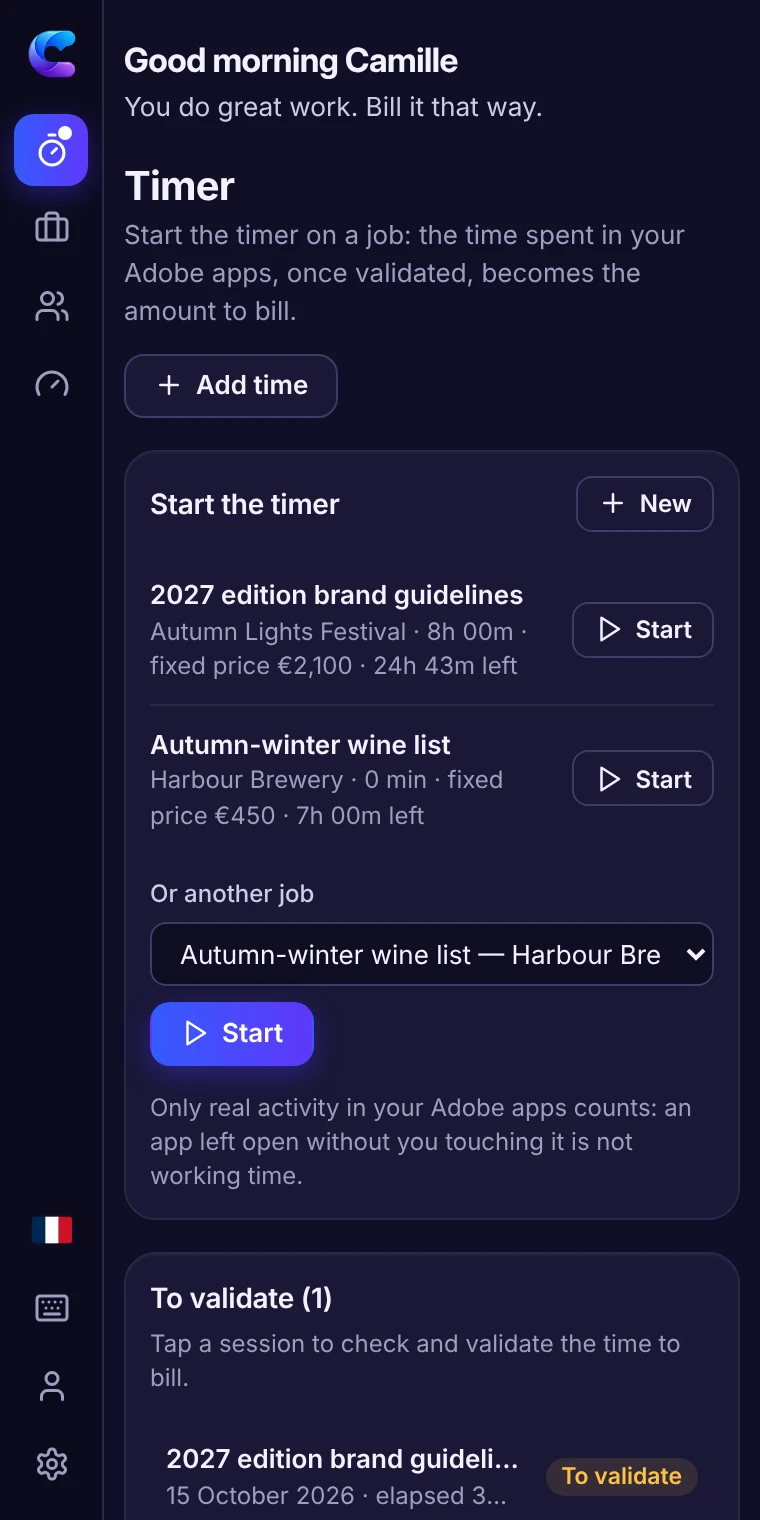
From time spent in Photoshop to the amount to bill.
- Start the timer on the job. One click in the panel, on the work in progress. You can also add time manually.
- Work as usual. The timer follows your activity in Photoshop. Away for more than 15 minutes? It asks you when you come back whether that time should count; forgotten for hours? It warns you.
- Validate the session. Elapsed, active and idle time stay separate: you keep the billable time, count or remove a break, correct if needed.
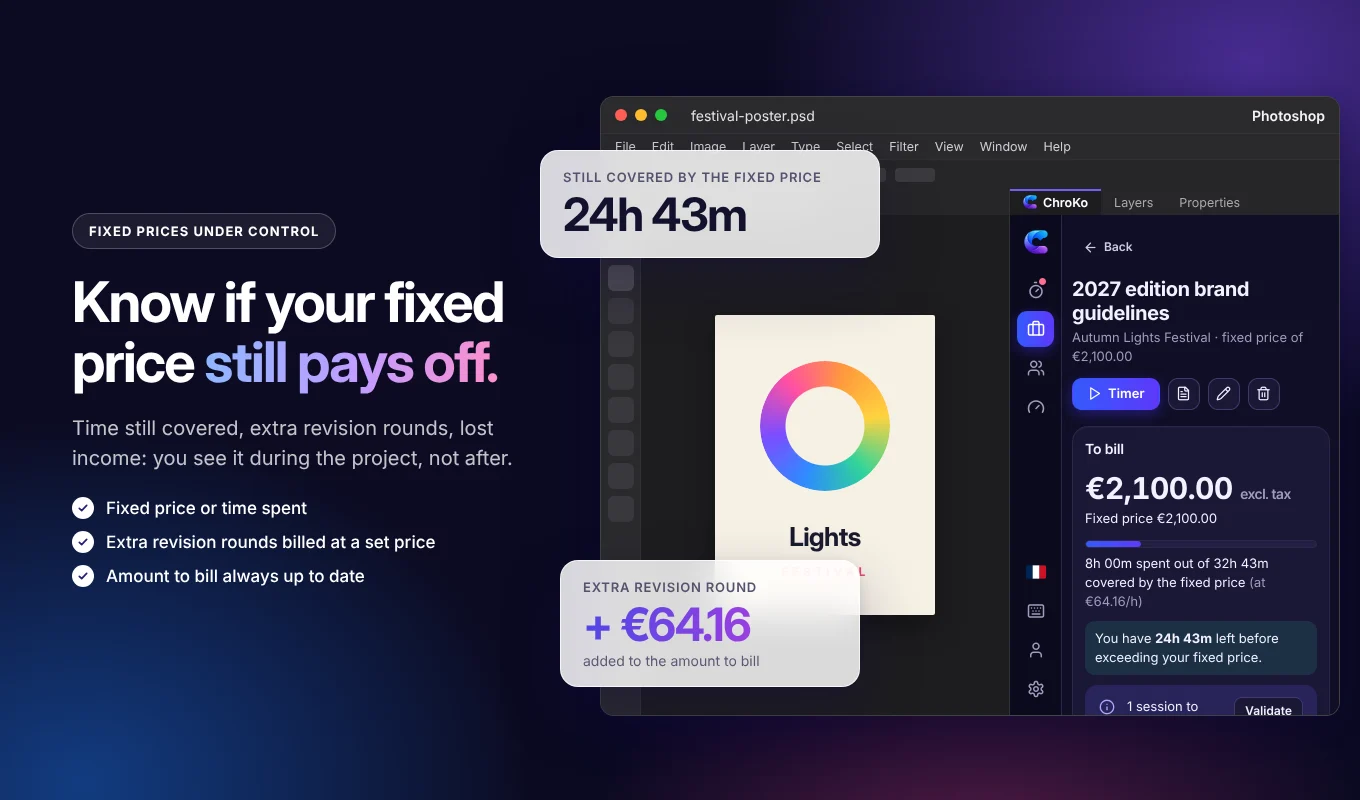
- Bill. For time spent, the amount is the validated time multiplied by your rate; at a fixed price, you see the time still covered or the lost income. A PDF timesheet goes with your invoice.
For the work that always runs over.
Retouching and cut-outs
Product photo series, cut-outs, color correction: the time of each series, proven session by session.
Social media visuals
Square and vertical formats, banners: the “quick” variations that end up taking the whole afternoon.
Posters and composites
Compositions, integrations, mood retouching: see whether the fixed price still holds before the third round of revisions.
Mock-ups and ads
Web banners, campaign visuals, mock-ups: the real time of every job, client by client.
Install the timer in Photoshop (.ccx).
- Download the Photoshop .ccx file from the Download page.
- Double-click it: the Creative Cloud app installs the plugin.
- In Photoshop, open the Plugins › ChroKo menu and sign in.
The plugin works with a subscription (€11.90 a month or €99 a year). To discover it first, the online demo shows every feature for 15 minutes, with sample data. Your own work numbers stay on your computer.
The same timer in your other apps.
One job, one timer, five apps: same jobs, same clients, same rates, and time adds up wherever you work.
Illustrator
What the timer counts in Illustrator, its uses and its installation.
Time tracking in IllustratorInDesign
What the timer counts in InDesign, its uses and its installation.
Time tracking in InDesignPremiere
What the timer counts in Premiere, its uses and its installation.
Time tracking in PremiereAfter Effects
What the timer counts in After Effects, its uses and its installation.
Time tracking in After EffectsQuestions about the timer in Photoshop
Doesn’t Photoshop already keep track of the time spent?
Photoshop’s history log, which you can enable in the preferences, can record your sessions file by file in the metadata. But it does not group the files of the same job, does not let you choose the billable time and calculates no price: that is exactly what the timer does.
Does the timer count the time Photoshop stays open during a meeting?
No. Without any action in Photoshop for the idle threshold, that time becomes idle time. If you are away for more than 15 minutes, the panel asks you when you come back whether it should count, for a client call for example.
What if I switch from Photoshop to Illustrator or InDesign on the same project?
The timer and your data are shared by Photoshop, Illustrator, InDesign, Premiere and After Effects: install ChroKo in each app and you find the same jobs, clients and rates everywhere. Time spent in one or the other adds up on the same job, on the same computer and with the same subscription.
Which version of Photoshop do I need?
Photoshop 2025 (26.0) or later, on Mac or PC. One subscription covers 3 computers, and all the apps on the same computer count as one.
Your time in Photoshop,
finally billed.
€11.90 a month or €99 a year, no commitment. Photoshop, Illustrator, InDesign, Premiere and After Effects included.